
How to Setup IMPlayer 2026 — The Easy Installation Guide
Learn how to setup IMPlayer 2026 on any device in just 10 minutes. This step-by-step guide covers installation on Firestick, Android TV, Apple TV, iPhone, and iPad. Whether you are a beginner or experienced user, follow our instructions to get IMPlayer running smoothly with your playlists.
What You Need Before Starting
A compatible device, stable internet (5Mbps+), and an M3U URL or Xtream Codes from your IPTV provider. IMPlayer is a media player only — it does not provide content.
Table of Contents — Setup IMPlayer 2026
How to Setup iMPlayer 2026 — Compatible Devices
IMPlayer supports a wide range of devices. Here's how to setup iMPlayer 2026 on your device — simply choose your platform below and follow the specific installation steps.
Amazon Fire TV
Firestick, Fire TV Stick 4K, Fire TV Cube, and Fire TV Edition smart TVs. Requires sideloading via Downloader.
Downloader Code: 82375Android TV / Google TV
Android TV boxes, Google TV devices, NVIDIA Shield TV, and Android smart TVs. Available on Google Play Store.
Google PlayApple TV 4K
Apple TV HD and Apple TV 4K (all generations). Download directly from the Apple App Store.
App StoreiPhone & iPad
iPhone and iPad running iOS 14 or later. Full touch controls and AirPlay support included.
App StoreAndroid Phones
Android smartphones and tablets running Android 5.0 or later. Available on Google Play Store.
Google PlayAndroid Tablets
Samsung Galaxy Tab, Lenovo Tab, and other Android tablets. Optimized for larger screens.
Google PlayHow to Setup iMPlayer 2026 — What You Need
Before you begin, here's how to setup iMPlayer 2026 the right way: make sure your device and network meet these minimum requirements. This ensures smooth streaming and optimal performance while you setup IMPlayer 2026 for the first time.
Hardware Requirements to Setup IMPlayer 2026:
- RAM: 1.5GB minimum (2GB recommended)
- Storage: At least 100MB free space
- Processor: 1.5GHz or higher
- GPU: OpenGL ES 2.0 support
- Screen: 720p minimum resolution
Network Requirements:
- Internet: 5Mbps minimum (10Mbps+ for HD)
- Stable Wi-Fi or Ethernet connection
- VPN recommended for privacy (optional)
Software Requirements:
- Android 5.0+ or iOS 14+
- Google Play Services (Android)
- Background data enabled
Subscription Requirements:
- Active IPTV subscription with M3U URL or Xtream Codes
- Valid EPG URL (optional but recommended)
- IMPlayer account for cloud features
How to Setup IMPlayer 2026 on Firestick
IMPlayer is not available in the Amazon App Store, so you will need to sideload it using the Downloader app. Follow these steps carefully to setup IMPlayer 2026 on your Firestick.
Install the Downloader App
First, you need to install the Downloader app on your Firestick. This app allows you to download APK files directly.
- From the Firestick home screen, go to Find and select Search
- Type "Downloader" and select it from the results
- Click Download or Get to install the app
- Once installed, click Open
Enable Apps from Unknown Sources
Firestick blocks installations from unknown sources by default. You must enable this setting before proceeding.
- Go to Settings on your Firestick home screen
- Select My Fire TV (or Device on older models)
- Click Developer Options
- Turn on Apps from Unknown Sources
- Click Turn On to confirm
Download IMPlayer Using Downloader
Now use the Downloader app to install IMPlayer using the official downloader code or direct URL.
- Open the Downloader app
- In the URL box, enter the code:
82375 - Click Go and wait for the download to complete
- When the download finishes, click Install
- After installation, click Done
- Optionally, delete the APK file to save space
Launch and Setup IMPlayer
Once installed, open IMPlayer and complete the initial setup process.
- Go back to your Firestick home screen
- Find and open IMPlayer from your apps
- Click Allow when prompted for permissions
- Skip or close the welcome messages
- Click Add Playlist to begin
How to Setup IMPlayer 2026 on Android TV
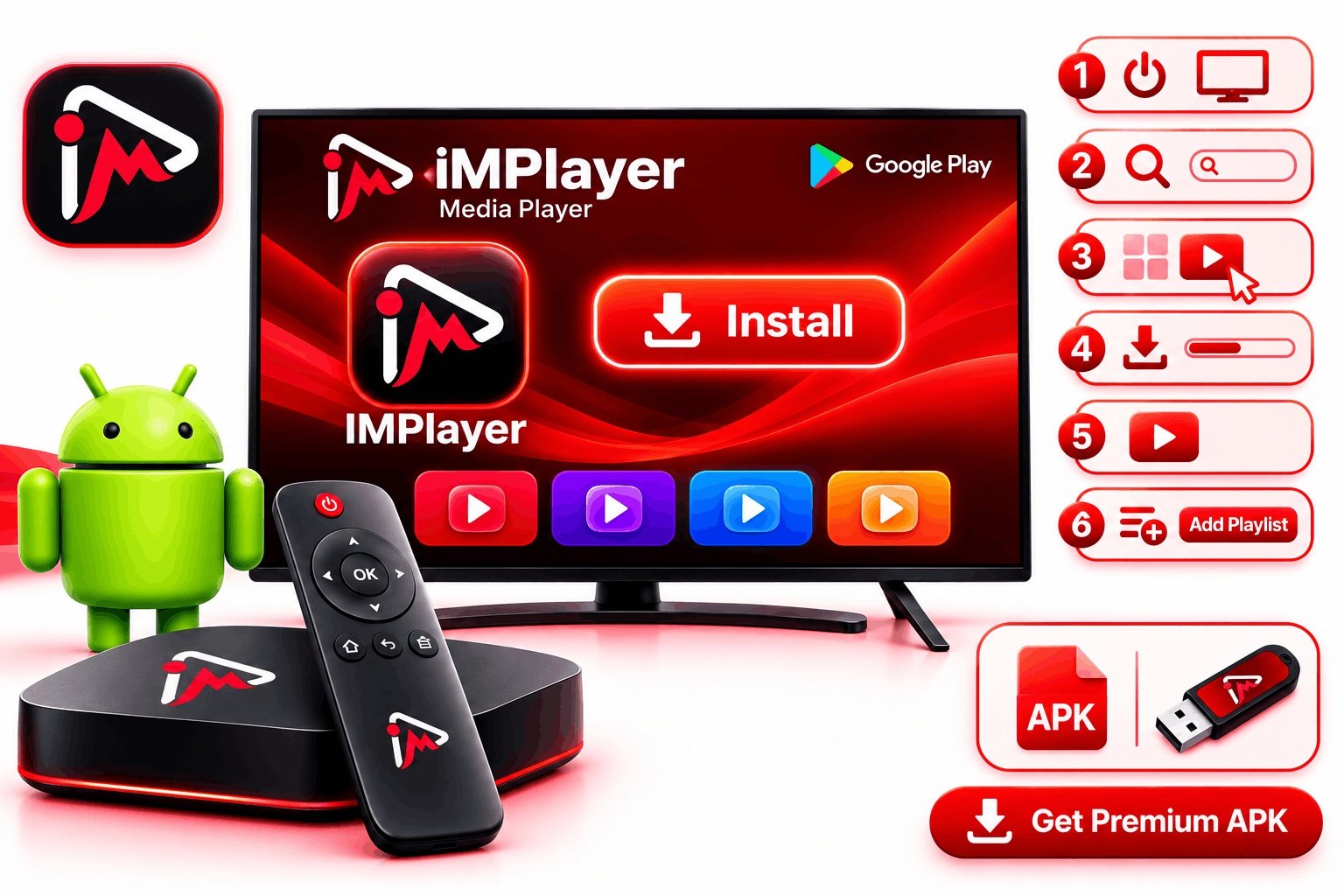
Installing IMPlayer on Android TV is the easiest method since the app is available directly on the Google Play Store. No sideloading required — here's how to setup iMPlayer 2026 in just a few taps.
Step-by-Step Installation:
- Turn on your Android TV and open the Google Play Store
- Use the search function and type "IMPlayer" or "iMPlayer Media Player"
- Select the app from the search results
- Click Install and wait for the download to complete
- Once installed, click Open to launch the app
- Accept any necessary permissions when prompted
- Click Add Playlist to start adding your content
Alternative: APK Installation
If Google Play Store is not available on your device, you can sideload the APK using a USB drive or file manager app. Download the latest APK from the official IMPlayer website.
How to Setup IMPlayer 2026 on Apple TV
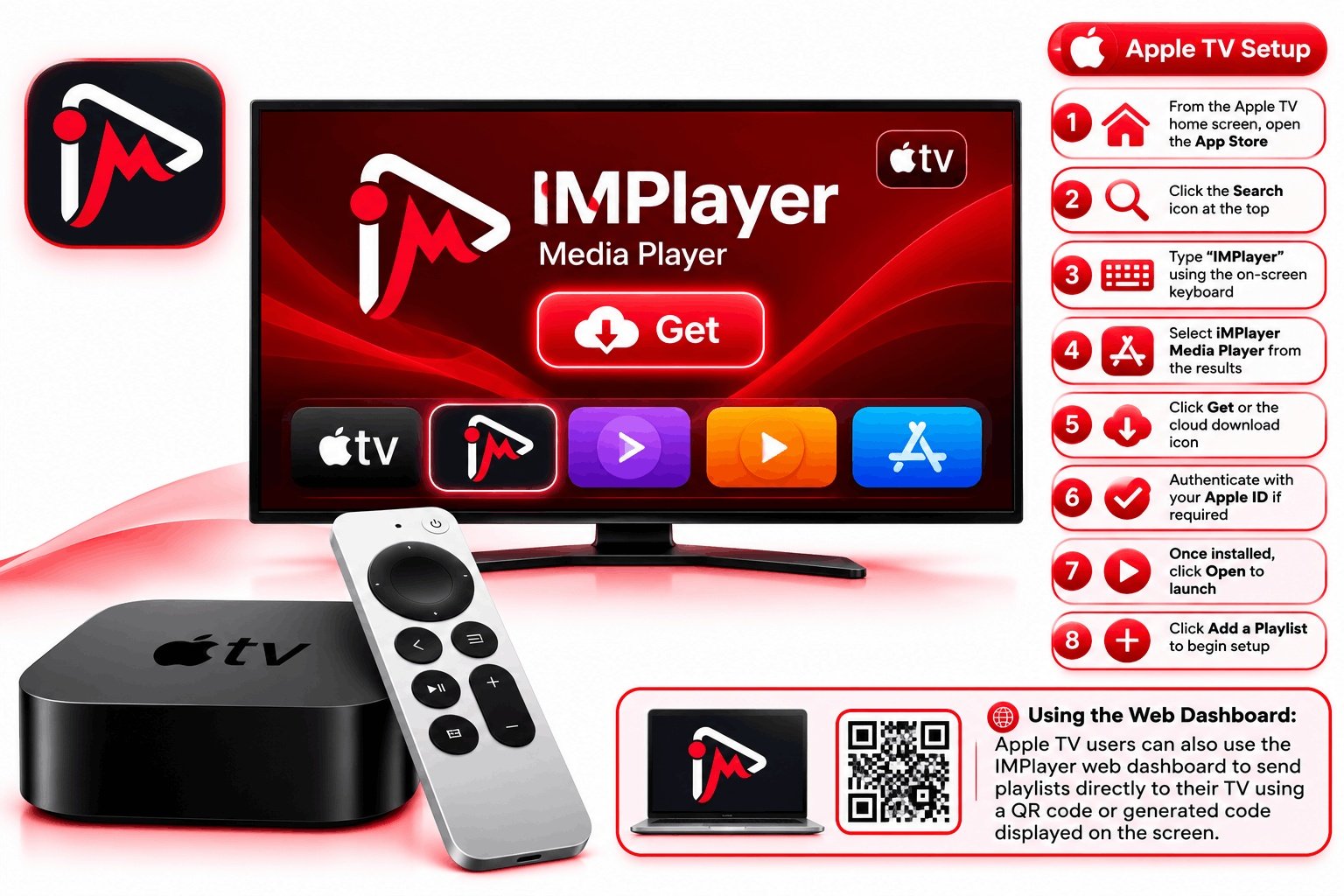
IMPlayer is available directly on the Apple App Store for Apple TV 4K and Apple TV HD. Here's how to setup iMPlayer 2026 on Apple TV — the installation is straightforward and takes just a few minutes.
Step-by-Step Installation:
- From the Apple TV home screen, open the App Store
- Click the Search icon at the top
- Type "IMPlayer" using the on-screen keyboard
- Select iMPlayer Media Player from the results
- Click Get or the cloud download icon
- Authenticate with your Apple ID if required
- Once installed, click Open to launch
- Click Add a Playlist to begin setup
Using the Web Dashboard:
Apple TV users can also use the IMPlayer web dashboard to send playlists directly to their TV using a QR code or generated code displayed on the screen.
How to Setup IMPlayer 2026 on iPhone & iPad
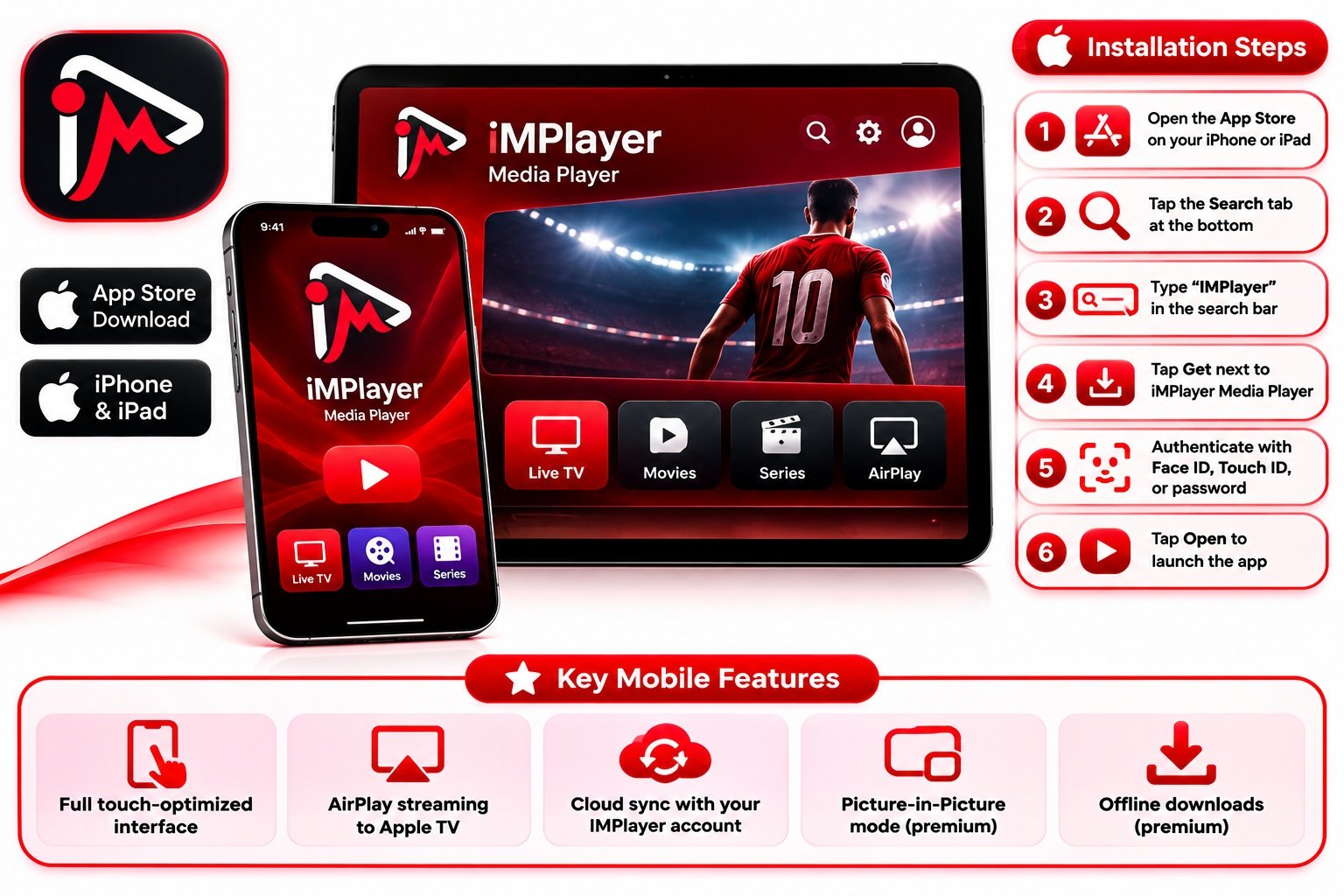
IMPlayer works beautifully on iOS devices, offering full touch controls, AirPlay support, and seamless synchronization with your Apple TV via the cloud dashboard. Here's how to setup iMPlayer 2026 on your iPhone or iPad.
Installation Steps:
- Open the App Store on your iPhone or iPad
- Tap the Search tab at the bottom
- Type "IMPlayer" in the search bar
- Tap Get next to iMPlayer Media Player
- Authenticate with Face ID, Touch ID, or password
- Wait for the installation to complete
- Tap Open to launch the app
Key Mobile Features:
- Full touch-optimized interface
- AirPlay streaming to Apple TV
- Cloud sync with your IMPlayer account
- Picture-in-Picture mode (premium)
- Offline downloads (premium)
How to Setup iMPlayer 2026 — Add Your Playlist
Once IMPlayer is installed, you need to add your playlist. Learn how to setup iMPlayer 2026 playlists using any of these three methods: M3U URLs, Xtream Codes API, and Stalker/MAG portals.
Method 1: M3U URL (Recommended for Beginners)
The M3U URL method is the simplest way to add your channels to IMPlayer.
- Open IMPlayer and click Add Playlist
- Select M3U URL from the options
- Enter a name for your playlist (e.g., "My Channels")
- Paste your M3U URL provided by your IPTV service
- Optionally, add an EPG URL for the program guide
- Click Next and then Finish
- Wait a few seconds for your channels to load
Method 2: Xtream Codes API (Best Features)
Xtream Codes API is the preferred method as it includes catch-up TV and automatic EPG loading.
- Click Add New Playlist in IMPlayer
- Select XC API from the login options
- Enter a name for your playlist
- Enter your server URL (provided by your IPTV service)
- Enter your username and password
- Click Next and then Finish
- Your channels, VOD, and series will load automatically
Method 3: Web Dashboard (Apple TV & Cloud)
Use the IMPlayer web dashboard to manage playlists remotely and sync across devices.
- Visit implayer.tv/add on your phone or computer
- Sign in with your IMPlayer account
- Enter the code displayed on your TV screen
- Add your M3U URL or Xtream Codes in the dashboard
- Your playlist will sync automatically to your device
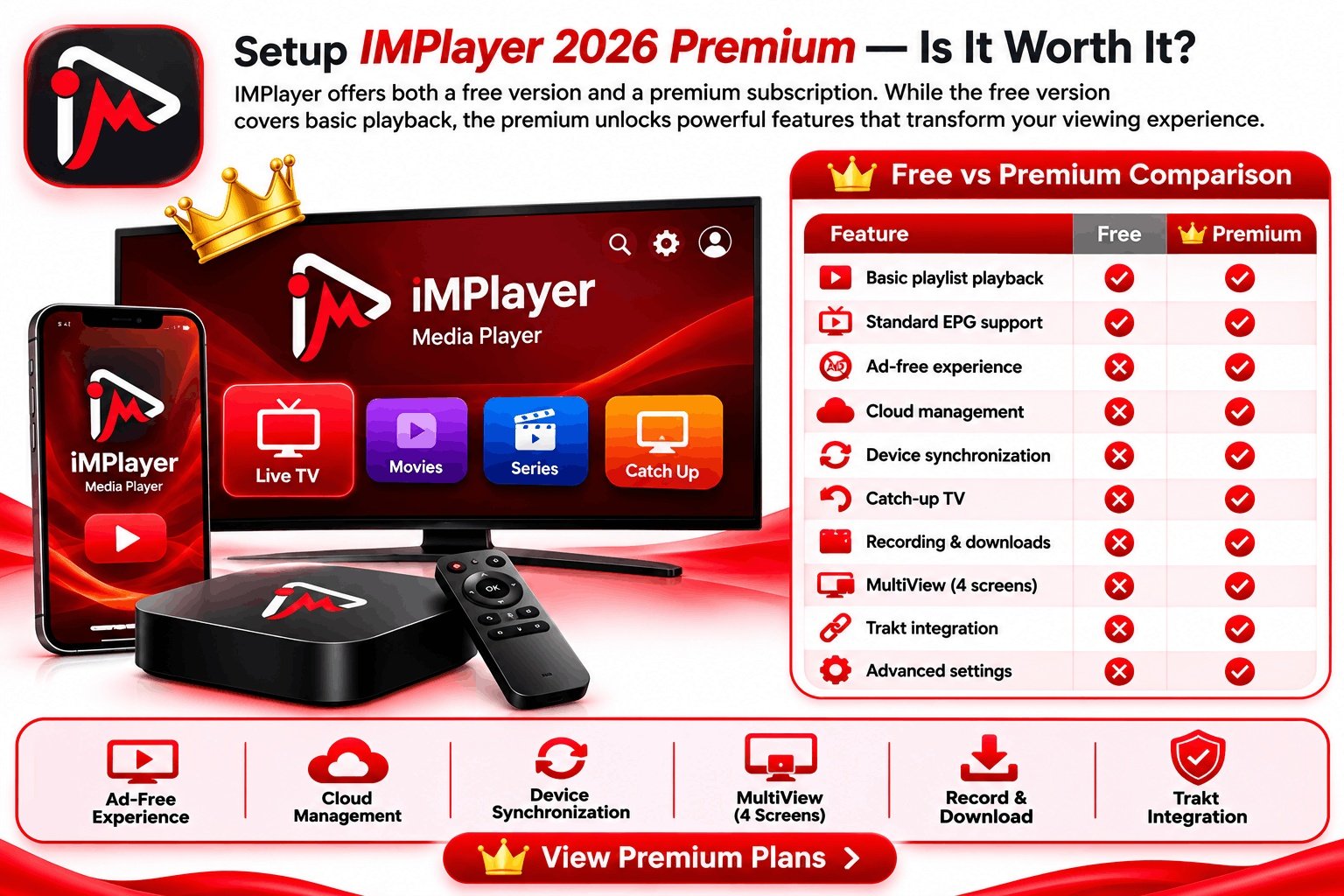
How to Setup iMPlayer 2026 Premium — Is It Worth It?
IMPlayer offers both a free version and a premium subscription. This section explains how to setup iMPlayer 2026 premium features step-by-step, and whether the upgrade is worth it for your viewing needs.
Free vs Premium Comparison:
| Feature | Free | Premium |
|---|---|---|
| Basic playlist playback | Yes | Yes |
| Standard EPG support | Yes | Yes |
| Ad-free experience | No | Yes |
| Cloud management | No | Yes |
| Device synchronization | No | Yes |
| Catch-up TV | No | Yes |
| Recording & downloads | No | Yes |
| MultiView (4 screens) | No | Yes |
| Trakt integration | No | Yes |
| Advanced settings | No | Yes |
How to Setup iMPlayer 2026 — Fix Common Issues
Running into problems? Here's how to setup iMPlayer 2026 correctly and resolve the most common issues quickly, so you can get back to streaming.
Connection Failed
If IMPlayer cannot connect to your playlist:
- Check your internet connection
- Verify your M3U URL or Xtream Codes are correct
- Try using a VPN if your provider recommends it
- Check if your provider's server is online
- Test both HTTP and HTTPS URLs
Playback Issues
If channels buffer or won't play:
- Test your internet speed (10Mbps+ recommended)
- Try different player engines (Built-in/VLC/MX)
- Adjust buffer size in IMPlayer settings
- Clear app cache through device settings
- Try different stream qualities
EPG Not Loading
If the program guide is empty:
- Verify your EPG URL is correct and active
- Force EPG update in IMPlayer settings
- Check timezone settings in the app
- Clear EPG cache in settings menu
- Allow up to 24 hours for complete EPG load
App Crashes
If IMPlayer crashes or freezes:
- Restart your device completely
- Clear app cache and data
- Uninstall and reinstall the latest version
- Check for available system updates
- Remove unused playlists to reduce load
How to Setup iMPlayer 2026 — Frequently Asked Questions
Below are quick answers about how to setup iMPlayer 2026, covering everything from installation to configuration for beginners and advanced users.
Yes, IMPlayer offers a free version with basic playlist playback and standard EPG support. However, advanced features like cloud management, recording, MultiView, catch-up TV, and ad-free experience require a premium subscription. We recommend starting with the free version and upgrading if you need premium features once you setup IMPlayer 2026.
No. IMPlayer is strictly a media player application — it does not provide any content, playlists, channels, or IPTV subscriptions. You must supply your own legal M3U playlists or Xtream Codes from a legitimate IPTV provider. IMPlayer simply provides the technology to play and manage your content.
To setup IMPlayer 2026 on Firestick, you need to sideload the app since it is not in the Amazon App Store. Install the Downloader app, enable "Apps from Unknown Sources" in settings, then enter the code 82375 in Downloader to download and install IMPlayer. Full step-by-step instructions are in the Firestick section above.
The official IMPlayer downloader code for Firestick and Android TV devices is 82375. Enter this code in the Downloader app to download the latest IMPlayer APK directly from the official source. This is the safest and most reliable method for sideloading.
Yes! With a premium subscription, you can use IMPlayer on multiple devices. Plans are available for 2, 3, 4, or 5 devices. You can also add extra devices to any plan for $7 per device with no limit on the total number of devices.
Open IMPlayer and click Add Playlist. Choose between M3U URL, Xtream Codes API, or Stalker/MAG. Enter your credentials provided by your IPTV service, then click Finish. For Apple TV users, you can also use the web dashboard to send playlists via QR code.
Yes! IMPlayer offers a free 24-hour trial of premium features after you register an account. This gives you full access to cloud management, recording, MultiView, and all other premium capabilities. Start your free trial here.
Buffering is usually caused by slow internet, server issues from your provider, or incorrect buffer settings. Try these fixes: test your speed (10Mbps+ needed for HD), switch player engines in settings, increase buffer size, use a VPN, or contact your IPTV provider to check server status. See our troubleshooting section for more details.
You can reach IMPlayer support via email at support@implayer.tv or through the contact form on our website. The team is also active on Discord for community support. For quick answers, check our FAQ page first.
How to Setup iMPlayer 2026 — Get Help
Need one-on-one help? Learn how to setup iMPlayer 2026 with support from our team for installation, configuration, and any technical issues.
Email Support
support@implayer.tv
Response within 24 hours
Live Chat
Available on implayer.tv
Real-time assistance